Showing posts with label google maps. Show all posts

Feb 25, 2014

OpenStreetMaps layer in Google Maps API V3

Adding an OSM layer in Google Maps is very easy, since the V3 API provides a functionality for adding custom layers (even WMS!).

First, you need to define custom map settings, to include your layer. It's good to change the layer chooser to 'dropdown' too.
map = new google.maps.Map(document.getElementById("gmap_canvas"), {
 scaleControl: true,
 mapTypeId: google.maps.MapTypeId.ROADMAP,
 mapTypeControlOptions: {
  mapTypeIds: [
   "OSM",
   google.maps.MapTypeId.ROADMAP, 
   google.maps.MapTypeId.SATELLITE, 
   google.maps.MapTypeId.HYBRID, 
   google.maps.MapTypeId.TERRAIN
  ],
  style: google.maps.MapTypeControlStyle.DROPDOWN_MENU
 }
});
Next, you define your OSM layer like so:
map.mapTypes.set("OSM", new google.maps.ImageMapType({
 getTileUrl: function(coord, zoom) {
  return "http://tile.openstreetmap.org/" + zoom + "/" + coord.x + "/" + coord.y + ".png";
 },
 tileSize: new google.maps.Size(256, 256),
 name: "OSM",
 maxZoom: 18
}));
And there you go. You can check the demo out at: http://poi.kafol.net/


Nov 14, 2013

Convert coordinates to street address (reverse geocoding) via Google Maps API

Because most articles on this topic are quite outdated, here is a quick tip on how to do reverse geocoding with the help of Google Maps API v3.

In fact, you don't even need an API, this can be done manually via browser, or by fetching the url with some script and parsing the result.

The link is in this format:
https://maps.googleapis.com/maps/api/geocode/json?latlng=[LAT,LON]&sensor=true

Example:
https://maps.googleapis.com/maps/api/geocode/json?latlng=45.668483,14.18955&sensor=true

The result can be in JSON or XML format.
Documentation: https://developers.google.com/maps/documentation/geocoding/#JSON

JSON example result:
{
   "results" : [
      {
         "address_components" : [
            {
               "long_name" : "51",
               "short_name" : "51",
               "types" : [ "street_number" ]
            },
            {
               "long_name" : "Kolodvorska cesta",
               "short_name" : "Kolodvorska cesta",
               "types" : [ "route" ]
            },
            {
               "long_name" : "Pivka",
               "short_name" : "Pivka",
               "types" : [ "locality", "political" ]
            },
            {
               "long_name" : "Slovenia",
               "short_name" : "SI",
               "types" : [ "country", "political" ]
            },
            {
               "long_name" : "6257",
               "short_name" : "6257",
               "types" : [ "postal_code" ]
            },
            {
               "long_name" : "Pivka",
               "short_name" : "Pivka",
               "types" : [ "postal_town" ]
            }
         ],
         "formatted_address" : "Kolodvorska cesta 51, 6257 Pivka, Slovenia",

Apr 14, 2012

Google Maps API Key for Android (Eclipse, Windows)

There are two main types of keystores in Eclipse - one is for debugging (a keystore with no password) and the other one is when you create a new one yourself, with a password.

To make Google Maps work on your Android app, you need to enter a MD5 fingerprint of your keystore in Google Maps API signup: http://code.google.com/android/maps-api-signup.html

And here's how you get your keystore's MD5 fingerprint in Windows.

  1. You probably already have JDK installed. Find out your Java bin directory. Mine is:
    C:\Program Files\Java\jdk1.6.0_24\bin
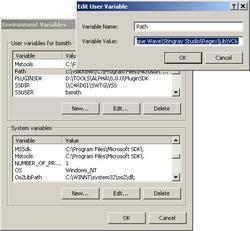
  2. Enter this directory path in your PATH Environment variable (see picture).
  3. Start "cmd" and navigate to your
    C:\Users\<yourusername>\.android
    directory
  4. Type this command:
    keytool -list -keystore debug.keystore
  5. The password is empty, just hit enter
  6. You're done. Copy the MD5 fingerprint in that url, you get an API key, which you use in your Android MapView Layout file.
    android:apiKey="your api key here"

Nov 19, 2011

Android :: google maps (MapView) hacks, tricks, workarounds

MapView isn't very developer friendly now is it?

Here are some hacks I've had to work with:

1) When tapping on the overlay, the app crashes if you're trying to display the dialog.
Unable to add window -- token null is not for an application
Yes, this is due to context. Especially if you're trying to do this in a seperate thread or AsyncTask.
Turns out the context you need to pass to your dialog is mapView.getContext();
AlertDialog.Builder dialog = new AlertDialog.Builder(mapView.getContext());


2) Displaying only the overlays which are within map bounds
Oh yeah, several problems here. You've probably come across at least one of these:

  • Wrong map bounds in onCreate (0, 360000000),
    Yeah, in onCreate those haven't been calculated yet. onStart doesn't help either. Try this:
Runnable waitForMapTimeTask = new Runnable() {
  public void run() {
    if(mapView.getLatitudeSpan()==0||mapView.getLongitudeSpan()== 360000000) {
      mapView.postDelayed(this, 100);
    } else {
      redrawMarkers(); // draw here
    }
  }
};
mapView.postDelayed(waitForMapTimeTask, 100);

You create a new thread and wait until you get the right bounds. Recursively call it again.
  • Map bounds ???
    Don't worry, it's simple.
public Rect getMapBounds() {
return new Rect(
mapView.getMapCenter().getLongitudeE6() - mapView.getLongitudeSpan()/2,
mapView.getMapCenter().getLatitudeE6() - mapView.getLatitudeSpan()/2,
mapView.getMapCenter().getLongitudeE6() + mapView.getLongitudeSpan()/2,
mapView.getMapCenter().getLatitudeE6() + mapView.getLatitudeSpan()/2
);
}

...
if(!s.drawn && rect.contains(point.getLongitudeE6(), point.getLatitudeE6())) {


  • Yeah, okay, but what about panning / zooming?
    Well, there are no methods, like onPan or onZoom, but some people found their way around this problem. There is no perfect solution, you'll see.
    Check these links out:
  1. http://stackoverflow.com/questions/2328650/how-can-i-detect-if-an-android-mapview-has-been-panned-or-zoomed
  2. http://bricolsoftconsulting.com/2011/10/31/extending-mapview-to-add-a-change-event/
  3. http://stackoverflow.com/questions/3567420/how-to-catch-that-map-panning-and-zoom-are-really-finished
  • Zoom in on double tap?
    Click here: http://dev.kafol.net/2011/11/how-hard-is-it-to-make-simple-zoom-in.html.
  • Overlays don't get drawn immediately!
    Try this:
    mapView.postInvalidate();
    or this:
    mapView.invalidate();

    But keep in mind, that invalidate() needs to be called from an UI! If you're trying to get it working from a thread, use postInvalidate()!
  • MapView java.util.ConcurrentModificationException when adding new overlays
    Not sure if I solved this one, but it seems to work now. I read somewhere that this could happen if you add overlays in a non UI thread. I moved the 
    Nope, sorry, this one was my bad. I was doing some crazy async sorting and all hell broke loose.
itemizedOverlay.populateNow();
mapOverlays.add(itemizedOverlay);
mapView.postInvalidate();

From doInBackground to  onPostExecute in  AsyncTask.


You could also run something in a UI thread like this:

runOnUiThread(new Runnable() {
      @Override
       public void run() {
           //do stuff here
       }
});


Nov 18, 2011

Android :: google maps on double tap zoom in

How hard is it to make a simple zoom in call on double tap in MapView in Android?

Not very.

How hard is it to get the information on how to do it?

Very.

Here's what you probably didn't know:
You need to extend the MapView and use this extended class in the Android XML layout file.
In the extended class you instantiate the gesture detector and set on double tap listener.
In the Map Activity you implement OnGestureListener and OnDoubleTapListener.

Example:
<?xml version="1.0" encoding="utf-8"?>
<RelativeLayout xmlns:android="http://schemas.android.com/apk/res/android"
    android:layout_width="fill_parent"
    android:layout_height="fill_parent"
    android:gravity="center_horizontal" >
    
 <net.kafol.vlaki.ExtMapView
     xmlns:android="http://schemas.android.com/apk/res/android"
     android:id="@+id/mapview"
     android:layout_width="fill_parent"
     android:layout_height="fill_parent"
     android:clickable="true"
     android:enabled="true"
     android:apiKey=""
 />

</RelativeLayout>
package net.kafol.vlaki;

import android.content.Context;
import android.util.AttributeSet;
import android.view.GestureDetector;
import android.view.GestureDetector.OnDoubleTapListener;
import android.view.MotionEvent;
import android.view.GestureDetector.OnGestureListener;
import com.google.android.maps.MapView;

public class ExtMapView extends MapView {
 private Context context;
 private GestureDetector gestureDetector;

 public ExtMapView(Context c, AttributeSet attrs) {
  super(c, attrs);
  context = c;

  gestureDetector = new GestureDetector((OnGestureListener) context);
  gestureDetector.setOnDoubleTapListener((OnDoubleTapListener) context);
 }

 public boolean onTouchEvent(MotionEvent ev) {
  if (this.gestureDetector.onTouchEvent(ev))
   return true;
  else
   return super.onTouchEvent(ev);
 }
}
public class Map extends MapActivity implements OnGestureListener, OnDoubleTapListener {
...
 @Override
 public boolean onDoubleTap(MotionEvent e) {
     int x = (int)e.getX(), y = (int)e.getY();;
     Projection p = mapView.getProjection();
     mapView.getController().animateTo(p.fromPixels(x, y)); // zoom in to a point you tapped 
     mapView.getController().zoomIn();
  return true;
 }